



hero background

Empower AI integration with
DataForSEO MCP

Connect your AI application with the most capable source of SEO data

Sign up to DataForSEO

Get Started With DataForSEO MCP

Choose your AI client and follow the instructions to connect with DataForSEO APIs.

  1. 1

    Open Claude Desktop and go to Customize → Connectors.

  2. 2

    Click Add custom connector and paste the DataForSEO MCP HTTP URL:

    https://mcp.dataforseo.com/http
  3. 3

    When prompted, approve the Authorization request to access the DataForSEO API.

  4. 4

    Start a new chat. Claude will request your approval the first time it calls a DataForSEO tool.

  1. 1

    Open the configuration file:

    ~/Library/Application Support/Claude/claude_desktop_config.json
    On Windows: %APPDATA%\Claude\claude_desktop_config.json
  2. 2

    Add the following configuration to the file:

    JSON
    {
      "mcpServers": {
        "dataforseo": {
          "command": "npx",
          "args": ["-y", "dataforseo-mcp-server"],
          "env": {
            "DATAFORSEO_USERNAME": "your_api_login",
            "DATAFORSEO_PASSWORD": "your_api_password"
          }
        }
      }
    }
  3. 3

    Replace your_api_login and your_api_password with credentials from the API Access dashboard.

  4. 4

    Restart Claude Desktop. The DataForSEO tools will appear in your tool list.

  1. 1

    Generate a Base64 token from your API login and password (or copy a pre-encoded one from the API Access dashboard via the Send by Email button).

  2. 2

    Add the remote DataForSEO MCP server in your terminal:

    Bash
    claude mcp add --header "Authorization: Basic " --transport http dfs-mcp https://mcp.dataforseo.com/http
  3. 3

    Verify the connection:

    Bash
    claude mcp list
  1. 1

    Make sure you have Node.js 18+ installed.

  2. 2

    Register the local NPX server with your credentials:

    Bash
    claude mcp add dataforseo \
      --env DATAFORSEO_USERNAME=your_api_login \
      --env DATAFORSEO_PASSWORD=your_api_password \
      -- npx -y dataforseo-mcp-server
  3. 3

    Verify the connection:

    Bash
    claude mcp list
    Check our Help Center for more ways to install DataForSEO MCP with Claude Code.
  1. 1

    In Cursor, open Settings → Tools & Integrations → MCP Tools.

  2. 2

    Click Add Custom MCP and paste the remote configuration:

    JSON
    {
      "mcpServers": {
        "dataforseo": {
          "url": "https://mcp.dataforseo.com/mcp",
          "headers": {
            "Authorization": "Basic "
          }
        }
      }
    }
  3. 3

    Replace with your Base64-encoded username:password from the API Access dashboard.

  4. 4

    Save and reopen the chat. Cursor supports up to 40 active MCP tools — disable any modules you don’t need.

  1. 1

    Open the global Cursor MCP configuration:

    ~/.cursor/mcp.json
    You can also access this file from Settings → Tools & Integrations → Add Custom MCP.
  2. 2

    Add the local NPX configuration:

    JSON
    {
      "mcpServers": {
        "dataforseo": {
          "command": "npx",
          "args": ["-y", "dataforseo-mcp-server"],
          "env": {
            "DATAFORSEO_USERNAME": "your_api_login",
            "DATAFORSEO_PASSWORD": "your_api_password"
          }
        }
      }
    }
  3. 3

    Replace credentials with values from the API Access dashboard and save the file.

  4. 4

    Restart Cursor or reload the MCP servers from Tools & Integrations.

  1. 1

    Log into the OpenAI platform dashboard and start a new Chat with your preferred model.

  2. 2

    Click Tools → MCP Server → Add new.

  3. 3

    Paste the DataForSEO MCP server URL and give the connector a label:

    https://mcp.dataforseo.com/mcp
  4. 4

    Choose Custom headers as the authentication method and add:

    Header
    Authorization: Basic 
    Your credentials must be Base64-encoded. Use the Send by Email button in the API Access dashboard to receive a ready-to-use token.
  5. 5

    Enable the DataForSEO modules you want to expose and click Update.

  1. 1

    Install the Gemini CLI globally:

    Bash
    npm install -g @google/gemini-cli
  2. 2

    Open the Gemini settings file:

    ~/.gemini/settings.json
    Windows: C:\Users\\.gemini\settings.json
  3. 3

    Add the DataForSEO MCP server:

    JSON
    {
      "selectedAuthType": "gemini-api-key",
      "mcpServers": {
        "dataforseo": {
          "command": "npx",
          "args": ["-y", "dataforseo-mcp-server"],
          "env": {
            "DATAFORSEO_USERNAME": "your_api_login",
            "DATAFORSEO_PASSWORD": "your_api_password"
          }
        }
      }
    }
  4. 4

    Restart the CLI and run /mcp list to confirm DataForSEO is connected.

  1. 1

    Install Docker for your operating system.

  2. 2

    Pull and run the official DataForSEO MCP image:

    Bash
    docker run -p 3000:3000 \
      -e DATAFORSEO_USERNAME=your_api_login \
      -e DATAFORSEO_PASSWORD=your_api_password \
      dataforseo/mcp:latest
    Use your API login and password from the API Access section of the dashboard.
  3. 3

    The MCP server is now available locally at:

    http://localhost:3000
    Connect any MCP-compatible client to that URL. See the Docker Hub repository for advanced configuration.
  1. 1

    Point your MCP-compatible client to the official DataForSEO remote endpoint:

    https://mcp.dataforseo.com/mcp
  2. 2

    Authenticate with a Base64-encoded Basic Auth header:

    Header
    Authorization: Basic 
    Get your credentials from the API Access dashboard. The Send by Email button delivers a pre-encoded token.
  3. 3

    If your client expects a separate SSE endpoint, use https://mcp.dataforseo.com/http.

  1. 1

    Make sure Node.js 18+ is installed, then launch the server locally:

    Bash
    npx -y dataforseo-mcp-server
  2. 2

    Provide your credentials as environment variables:

    Bash
    export DATAFORSEO_USERNAME=your_api_login
    export DATAFORSEO_PASSWORD=your_api_password
  3. 3

    Or register the server directly inside your client config:

    JSON
    {
      "mcpServers": {
        "dataforseo": {
          "command": "npx",
          "args": ["-y", "dataforseo-mcp-server"],
          "env": {
            "DATAFORSEO_USERNAME": "your_api_login",
            "DATAFORSEO_PASSWORD": "your_api_password"
          }
        }
      }
    }
    Need a different setup? See the full DataForSEO MCP help center.

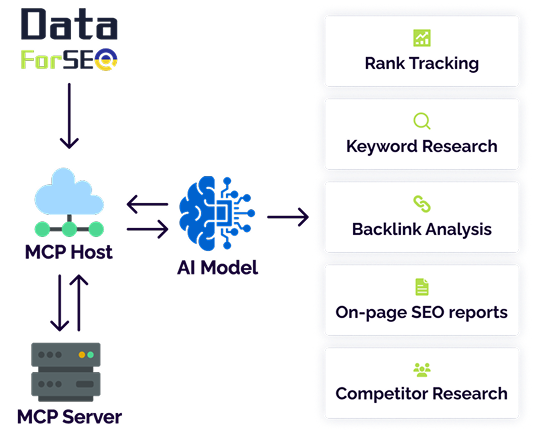
How does it work?

MCP Clients

AI applications that communicate with MCP servers.

Manual for Claude AI >>

MCP Server

A bridge between your AI model and DataForSEO APIs, managing requests and responses.

DataForSEO MCP Server >>

MCP Host

The application managing MCP clients and controlling permissions and security polices.

ai model

Fast-track your AI training: gather data at scale without interruption

fast track 1

Accelerated integration

Take advantage of out-of-the-box MCP to swiftly connect your AI model to a range of DataForSEO APIs without undertaking lengthy technical integration.

fast track 2

Interoperability

MCP server allows connecting DataForSEO APIs to a variety of AI models, like Claude, and Integrated Development Environments like Cursor AI.

fast track 3

Scalability

From pay-as-you-go pricing model to API endpoints – all DataForSEO services are built for outmost scalability. DataForSEO MCP server is no exception.

DataForSEO MCP server is made for every application

The DataForSEO MCP server is designed to support AI-driven applications across different industries and use cases. It enables seamless access to structured SEO and marketing data, making it a reliable foundation for training language models, powering search intelligence tools, and enriching large-scale datasets.

You can install DataForSEO MCP locally or easily connect through the Docker container.

server 1

AI-powered SEO tools

The DataForSEO MCP server delivers structured, real-time SEO data optimized for use in AI-powered tools, enabling accurate insights and intelligent automation at scale.

server 2

In-house SEO & marketing analysis

You get reliable, high-volume access to SEO and marketing data without any coding, making it easy to power up in-house analysis and reporting.

Jumpstart your journey with DataForSEO Labs API

How to Build Amazon Keyword Research Tool

Create a competitive solution with DataForSEO Labs Amazon API.

LEARN MORE
Jumpstart 2

Historical Google SERPs

Explore the use cases for historical Google SERPs by keyword.

LEARN MORE
Jumpstart 3

Start your unlimited free trial

Release in days, not weeks

Integrating a new data source can take a lot of time and money. We accelerate this process by providing a user-friendly interface for controlling your API usage and spending.

Well-rounded documentation

release 1

DataForSEO offers a detailed documentation for every parameter, field and function you can come across while using our APIs and databases.

VIEW

GUI for API usage control

release 2

Every DataForSEO user has access to a comprehensive graphic user interface (GUI) and can monitor and control every aspect of data usage.

REGISTER

Ad hoc integration and deployment support

release 3

Our support team is available 24/7 to ensure you get the required assistance and all your requests are addressed promptly and proficiently.

CONTACT US

Data industry leaders trust

Solutions developers praise

twinword head
Customer success story

Twinword Wins 35% More Paid Customers After Switching To DataForSEO APIs

Learn more
rev Kono Kim 1

"I always recommend DataForSEO. No worries about server capacity, no need for maintenance, and splendid possibilities for rapid development when we want to try something new. Why reinvent the wheel?"

logo-linkedin
Kono Kim Connect on LinkedIn

Join DataForSEO No-Code Community on Discord!

Join Now
mcp community discord

DataForSEO is ready when you are